
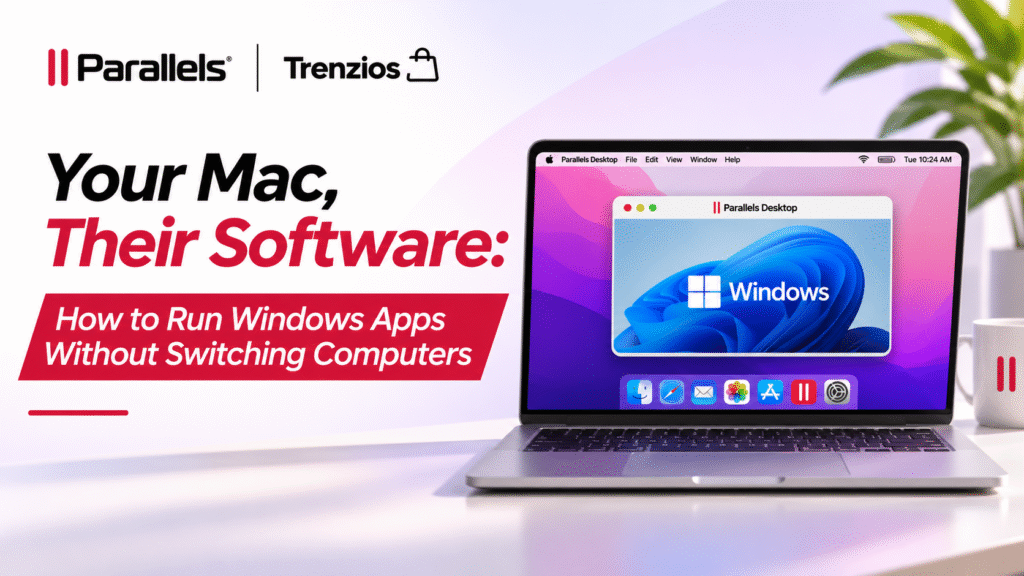
When your computer is right—but the software is not
You may love your Mac and still run into a familiar obstacle: a work application is Windows-only, a university project requires specialist software, or a client sends a file that works best in a Windows environment. Buying another computer just to handle a handful of tasks can feel like an unnecessary compromise.
A virtual machine offers another approach. It lets you run a separate operating system inside your existing computer, so you can use Windows applications while keeping macOS as your everyday workspace. Parallels Desktop for Mac is designed for this kind of setup: Windows runs alongside macOS, and you can switch between applications without rebooting.

Explore Parallels Desktop for Mac
What does “Windows in a virtual machine” actually mean?
Think of a virtual machine (VM) as a computer inside your computer. Parallels Desktop creates a virtual environment where Windows can run, using a portion of your Mac’s available memory, processing power and storage. Your Mac remains the main device, while Windows is available when a particular task calls for it.

This is different from replacing macOS or turning your Mac into a Windows-only machine. The two operating systems can run at the same time, and Windows applications can be opened alongside Mac applications. Parallels also describes integration features that help users work across the two environments.
See how Parallels runs Windows on Mac
Four situations where this setup can be useful
1. Work: keep access to business-critical applications
Some organisations rely on Windows versions of finance, reporting, project-management or office applications. Parallels highlights use cases such as Microsoft Office, Power BI, Access, Visio, Project, QuickBooks and other business tools. If a required application is not available in the Mac version—or a team depends on a Windows-specific add-in—a Windows VM may help you keep your existing Mac workflow.
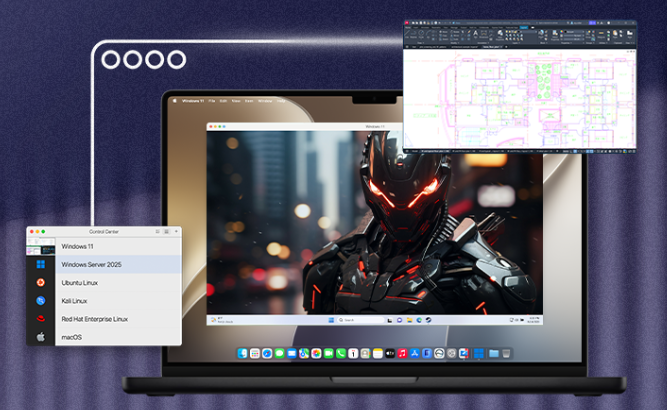
2. Study: use specialist academic software
Students in engineering, design, analytics and computer science may encounter software that is built primarily for Windows or Linux. Parallels lists examples including MATLAB, ANSYS, SolidWorks and Altium, as well as Linux distributions for computer science and software engineering learning. Always check the software publisher’s supported operating systems and hardware requirements before relying on a VM for a course or assessment.
3. Development: test across environments
Developers and QA teams may need to test an application on different operating systems, maintain separate environments or reproduce a user’s issue. Parallels Desktop Pro is aimed at power users and developers, with support for multiple virtual machines, command-line management and higher VM resource limits than Standard. Those features can be useful when a workflow involves repeated setup, testing or automation.
4. Personal projects: keep a familiar Windows tool close
You may simply have a preferred Windows-only utility, an older application or a hobby-related program that you do not want to give up after moving to Mac. For everyday use, the Standard edition is positioned for lighter Windows app use, including Office and other common business applications.
Which Parallels Desktop edition should you consider?
The best edition depends on the kind of work you expect the virtual machine to do. Parallels currently presents Standard, Pro, Business and Enterprise options, each aimed at a different user or organisation profile.
- Standard: designed for light home use and everyday Windows applications. The product comparison lists a maximum of 8 GB virtual RAM and 4 virtual CPUs per VM.
- Pro: intended for power users, developers and demanding workflows. The comparison lists up to 128 GB virtual RAM and 32 virtual CPUs per VM, subject to compatible Mac hardware and available resources.
- Business: adds team-focused capabilities such as centralized administration and license management, volume licensing, provisioning and deployment integrations.
- Enterprise: designed for IT-managed deployments, with centralized policy and compliance controls, standardized VM images, encrypted VMs and identity-management options.
Before installing: five checks worth making
- Confirm the Mac model and chip. Apple silicon and Intel Macs have different compatibility considerations, so check the current Parallels system requirements.
- Check the Windows version and licensing. Parallels provides the virtualisation environment; Windows licensing and activation requirements still apply.
- Verify the application itself. A Windows VM does not guarantee that every specialist application, driver, peripheral or plug-in will work exactly as it does on a native PC.
- Plan memory and storage. Windows and your Mac share the physical resources of the computer, so leave enough capacity for macOS and your usual applications.
- Check workload intensity. Basic office tasks are different from large CAD models, complex 3D work or running several VMs at once; choose hardware and edition accordingly.
What a virtual machine cannot automatically solve
Virtualisation is a practical option, not a universal compatibility guarantee. Some applications may have hardware, graphics, driver, anti-cheat, licensing or security requirements that need extra checking. Performance also depends on the Mac’s processor, memory, storage, the VM configuration and the demands of the software. For mission-critical work, confirm compatibility with both Parallels and the application vendor before making the VM your only route.
It is also worth remembering that Windows inside a VM still needs normal security care: install updates, use reputable software, protect accounts and handle shared folders or clipboard access thoughtfully—especially when working with sensitive files.
Keep the computer you like. Add the tools you need.
If your Mac suits the way you work but a few Windows-only applications keep getting in the way, Parallels Desktop may be worth considering. Start with the applications you need, check their compatibility, and choose an edition that matches the demands of your workload. The goal is not to run another operating system for its own sake; it is to make your existing computer more useful.
Ready to make your Mac work across platforms? Explore Parallels and find the right solution
Affiliate disclosure: This article contains an affiliate link. If you purchase through it, the publisher may earn a commission at no additional cost to you.